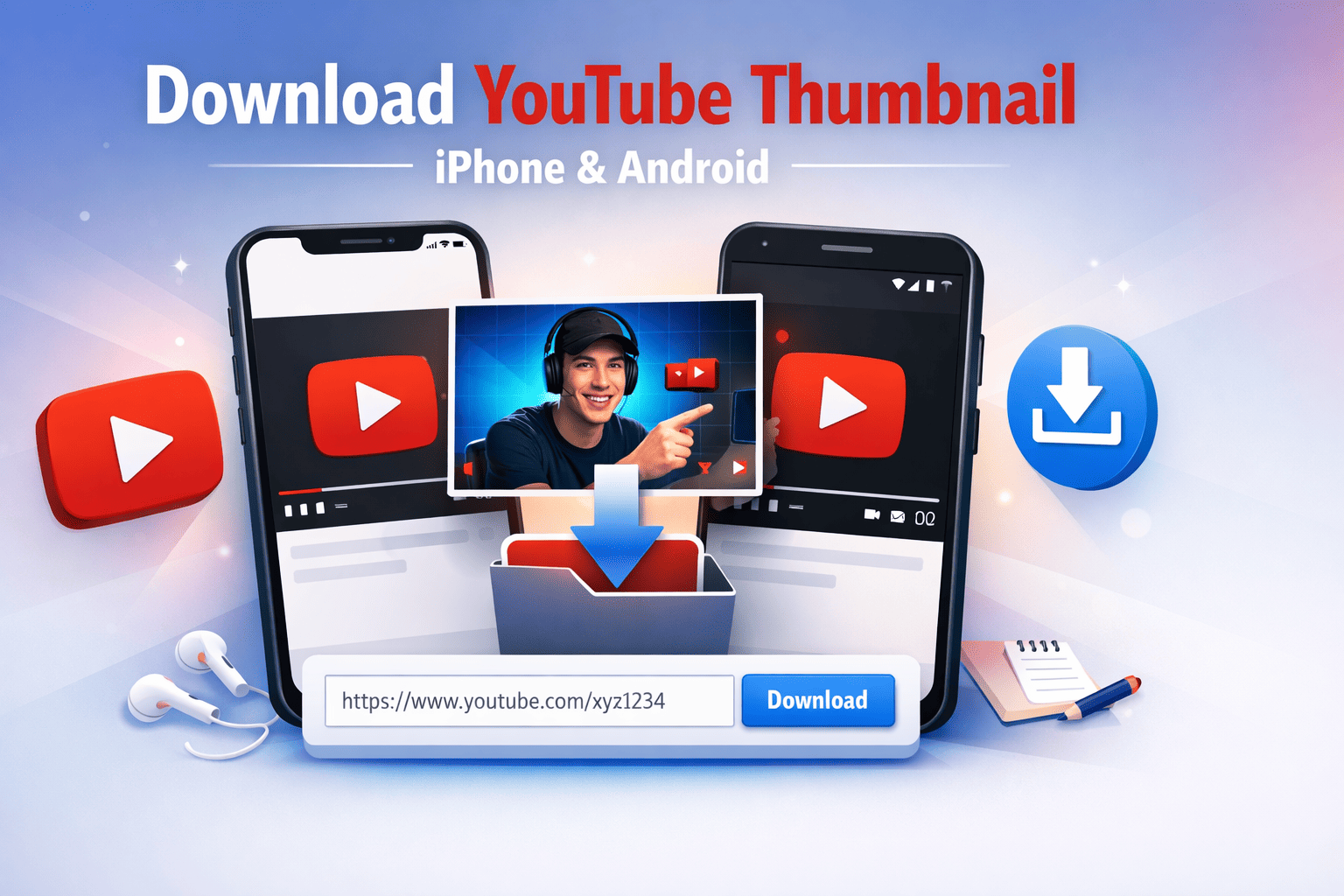
Most thumbnail download guides are written for desktop users. But the majority of people browsing YouTube are on their phones — and if you want to grab a thumbnail quickly while scrolling on mobile, you should not have to switch to a computer to do it.
The good news: you do not. This guide covers exactly how to download YouTube thumbnails on iPhone and Android in 2026, without installing any app or browser extension.
Can You Download YouTube Thumbnails on Mobile?
Yes. YouTube Thumbnail Grabber works directly in your mobile browser — Safari on iPhone or Chrome on Android. No app install, no account, no desktop required. The downloaded image saves straight to your photo library or downloads folder.
How to Download a YouTube Thumbnail on iPhone
Works on any iPhone running iOS 15 or later, with Safari or Chrome.
Step 1: Open the YouTube app and go to the video you want the thumbnail from.
Step 2: Tap the Share button below the video (the arrow icon).
Step 3: Tap Copy Link from the share sheet.
Step 4: Open Safari and go to yt-thumbnail-grabber.com.
Step 5: Tap the input field, paste the URL, and tap Get Thumbnails.
Step 6: Tap Download next to your preferred size — HD (1280×720) is recommended.
Step 7: The image opens in a new tab. Press and hold the image, then tap Save to Photos.
The thumbnail is now in your Camera Roll, ready to use in any app — Notes, Canva, Messages, Keynote, or anywhere else.
How to Download a YouTube Thumbnail on Android
Works on all major Android phones — Samsung, OnePlus, Pixel, Xiaomi, and others.
Step 1: Open YouTube and find the video.
Step 2: Tap Share below the video, then tap Copy Link.
Step 3: Open Chrome and go to yt-thumbnail-grabber.com.
Step 4: Paste the URL and tap Get Thumbnails.
Step 5: Tap Download next to your preferred size.
The image saves automatically to your Downloads folder. Find it in the Files app or in your Gallery under Downloads.
Which Size Should You Download?
If storage is not a concern, always choose HD (1280×720). It is the full-quality version that YouTube stores, and it gives you maximum flexibility — whether you are using it in a design tool, sending it to someone, or studying the layout for your own content.
If you are on a slow mobile connection, HQ (480×360) loads faster and still looks clean on a phone screen.
For a full breakdown of all available sizes and what each one is used for, see our YouTube thumbnail size guide.
What URL Formats Work on Mobile?
The tool handles every YouTube URL format you might copy from the app:
| URL Type | Example |
|---|---|
| Standard | youtube.com/watch?v=XXXXXXXXXXX |
| Short link | youtu.be/XXXXXXXXXXX |
| With timestamp | youtube.com/watch?v=XXXXXXXXXXX&t=120s |
| Embed | youtube.com/embed/XXXXXXXXXXX |
Just paste whatever YouTube’s share button gives you — the tool automatically identifies the video ID regardless of format.
Troubleshooting: What to Do If the Download Does Not Work
Occasionally mobile browsers handle downloads slightly differently. Here are fixes for the most common issues:
iPhone — image opens in new tab instead of downloading:
Press and hold the image and tap Add to Photos. Alternatively, tap the Share icon in Safari and choose Save Image.
Android — nothing happens after tapping Download:
Check your browser’s downloads section, or look in the Files app under Downloads. Some browsers save without showing a notification.
Both platforms — browser does not have permission to save files:
Go to your phone’s Settings → Apps → [Browser Name] → Permissions and enable storage access.
Still not working?
Try a different browser. Chrome, Firefox, and Safari handle file downloads slightly differently — switching often resolves the issue.
Does It Work Without an Internet Connection?
No — the tool fetches thumbnail images directly from YouTube’s servers in real time, so you need an active internet connection. However, once the image is downloaded to your device, you can view and use it offline.
Mobile vs Desktop: Is There Any Difference?
The tool works identically on both. The only practical difference is that on desktop you can right-click to save images, while on mobile you press and hold. The available thumbnail sizes, speed, and quality are the same on every platform.
If you prefer working on desktop, the process is equally simple — see our full guide on how to download YouTube thumbnails for free for the desktop walkthrough.
Final Thoughts
Downloading YouTube thumbnails on mobile is fast and requires nothing more than a browser. No app, no account, no hassle.
Visit yt-thumbnail-grabber.com on your phone, paste the YouTube link, and save the thumbnail directly to your device in seconds.
Related Articles: